How to Choose an AI Keywording Tool for Stock Photography (2026 Checklist)
Short answer: the best AI keywording tool for stock photography is the one that writes accurate keywords for the agencies you actually submit to, understands context the camera can't see, handles a whole shoot at once, and exports in a format your agency accepts. Price per image and privacy come next. Use the checklist below to compare any tool, including ours.
The 8-point checklist
1. Accuracy over volume
Every agency allows roughly 50 keywords, but more is not better. Irrelevant keywords put your image in front of buyers who won't buy it, and agencies can penalize them. Test a tool on 10 of your own images and count how many keywords you would delete. A good tool needs light editing, not a rewrite.
2. Context the AI can't see
An image model sees "a group of women with balloons". It doesn't know it's a bridal shower, in Lisbon, in 2026. Look for a way to add a short note per shoot or per folder that the AI applies to every file. On editorial agencies like Alamy, names, places and dates are what buyers search for.
3. Agency-specific rules
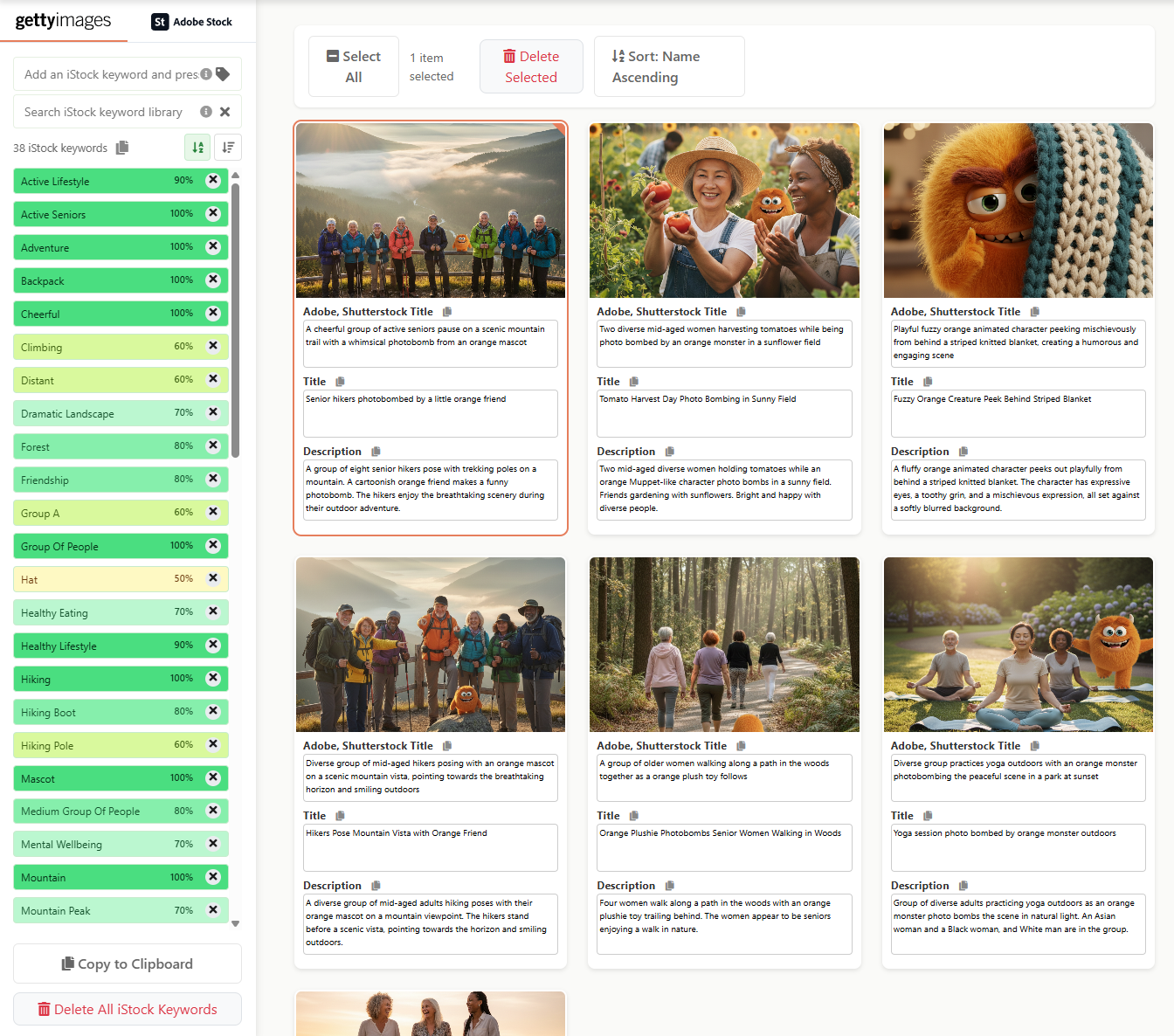
Each agency is different. Adobe Stock allows up to 49 keywords and weights the first 10 most. Shutterstock needs 7 to 50 keywords and a description under 150 characters. iStock and Getty Images only accept keywords from their controlled vocabulary. Alamy lets you mark 10 supertags. A good tool knows these rules, or at least lets you configure them. Our agency requirements comparison lists them side by side.
4. Controlled vocabulary for iStock and Getty
If you submit to iStock or Getty Images, free-text keywords that don't match the vocabulary are simply dropped during submission. Ask whether the tool matches its output to the Getty/iStock vocabulary. If it doesn't, expect a lot of manual disambiguation in ESP.
5. Batch workflow
Keywording one image at a time in a chatbot works for a handful of files, but not for a 500-image shoot. Check whether you can upload whole folders, apply the same context to a group, bulk-edit keywords across a selection, and regenerate a single file without redoing the batch.
6. Export that fits your upload
The tool should produce what your agency ingests: a CSV per agency for bulk metadata upload, and/or metadata embedded in the files (IPTC). Make sure keyword order is preserved, since order matters on Adobe Stock.
7. Privacy and data use
Your unreleased work is your inventory. Read whether uploaded files are used to train AI models, how long they're stored, and whether you can delete them.
8. Pricing model
Compare cost per image at your real monthly volume, not the headline plan price. Subscriptions suit steady volume; pay-as-you-go credits suit seasonal shooters. Check whether credits or quotas expire.
Quick comparison table
| Question to ask | Why it matters |
|---|---|
| Can I add a context note per shoot or folder? | Accurate titles and editorial captions |
| Does it match the iStock/Getty controlled vocabulary? | Avoids dropped keywords and disambiguation work |
| Can it process folders and bulk-edit? | Hours saved on large shoots |
| Does it export a CSV for each agency? | One upload of metadata per agency |
| Are keywords sorted by relevance? | Adobe Stock weights the first 10 |
| Is my content used for AI training? | Protects unreleased work |
| What is the cost per image at my volume? Do credits expire? | True cost of ownership |
Types of AI keywording tools
- General AI chatbots (ChatGPT, Claude, Gemini): good for a few images and for brainstorming concepts. You have to paste prompts and copy results by hand, and there's no controlled-vocabulary matching or agency CSV export.
- Lightroom and desktop plugins: keep files local and write metadata straight into your catalog. Good if your whole workflow lives in Lightroom.
- Web apps built for stock: upload a shoot, add context, review, and export per-agency files. Good for multi-agency contributors and large batches.
Where PhotoTager fits
PhotoTager is a web app built for stock contributors. Here is how it answers the checklist:
- Context: add a who/what/where/when note per project; organize folders as projects inside a batch and each note is applied to its files.
- Agency rules: separate Adobe Stock title, iStock keywords matched to a dictionary of about 20,600 iStock vocabulary terms, and relevance-sorted keywords in exports.
- Batch workflow: folder upload, bulk keyword editing across a selection, and single-file regenerate.
- Export: CSV per agency (Adobe Stock, Shutterstock, iStock, Getty Images, Alamy, Dreamstime, or a custom format), plus a ZIP of images with metadata.
- Privacy: your files are never used to train AI models, and you can delete them after export.
- Price: pay-as-you-go: $0.04 per image or $0.12 per video for full metadata, credits never expire, $2 free to start. See pricing.
When something else may suit you better: if you need a fully offline workflow inside Lightroom, a local plugin is the better fit, because PhotoTager works on uploaded files.